%20--%3e%3cdefs%3e%3cstyle%3e%20.st0%20{%20fill:%20%23050500;%20}%20%3c/style%3e%3c/defs%3e%3cpath%20class='st0'%20d='M268.9,0C191,14.1,124.2,46,75,92.4,23.1,141.3-1.5,205.2,0,269c1.7,70,37.1,118.6,90.9,158.7,49.4,36.9,108.2,61.9,166.2,97.2,61.1,37.4,122,82.6,141,145.1,19.8,69.2-12.2,135.1-132.2,187,71.8-6.2,142-32.9,191.5-85.4,44.9-47.2,66.2-105.5,54.5-174.2-11.7-72.1-55.8-130.8-118.5-177.9-57.6-43.3-124.9-77.7-185.9-113.6-55.1-33.8-92.1-73.6-94.6-128.3C108.2,106.8,155.4,43.4,269.1,0h-.2Z'/%3e%3ccircle%20class='st0'%20cx='395.8'%20cy='175.9'%20r='121.5'/%3e%3ccircle%20class='st0'%20cx='131.8'%20cy='710.6'%20r='120.2'/%3e%3c/svg%3e)
Keep every open bill in one place
Open bills stay organized on your Profile with names, totals, and what is left.
Scan the bill, assign who had what, and open Venmo, Cash App, or Zelle.
Available via Apple TestFlight
Download SlashTab Beta
Use your camera or pick a photo. SlashTab reads the line items so you can review everything before you split.
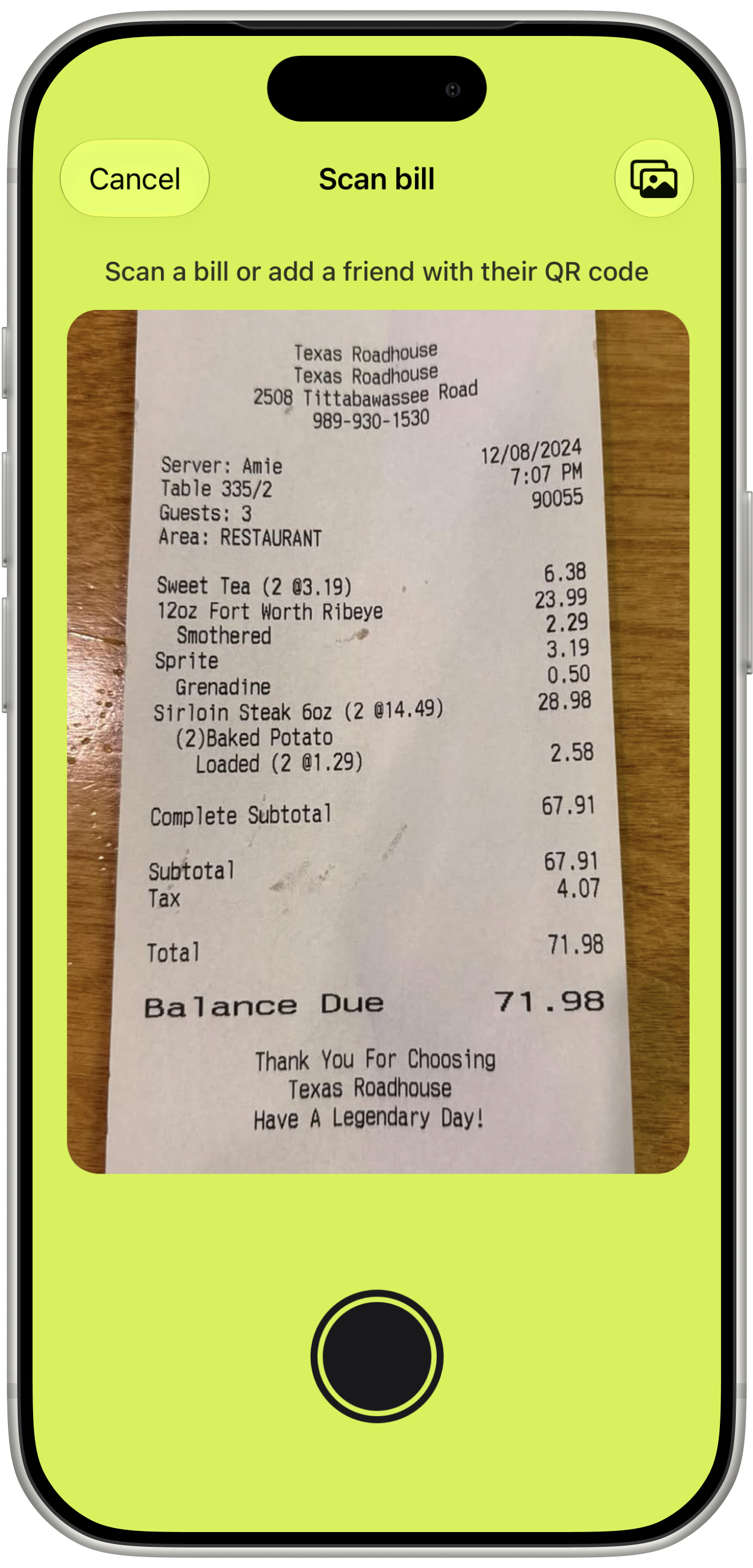
Use your camera or pick a photo. SlashTab reads the line items so you can review everything before you split.
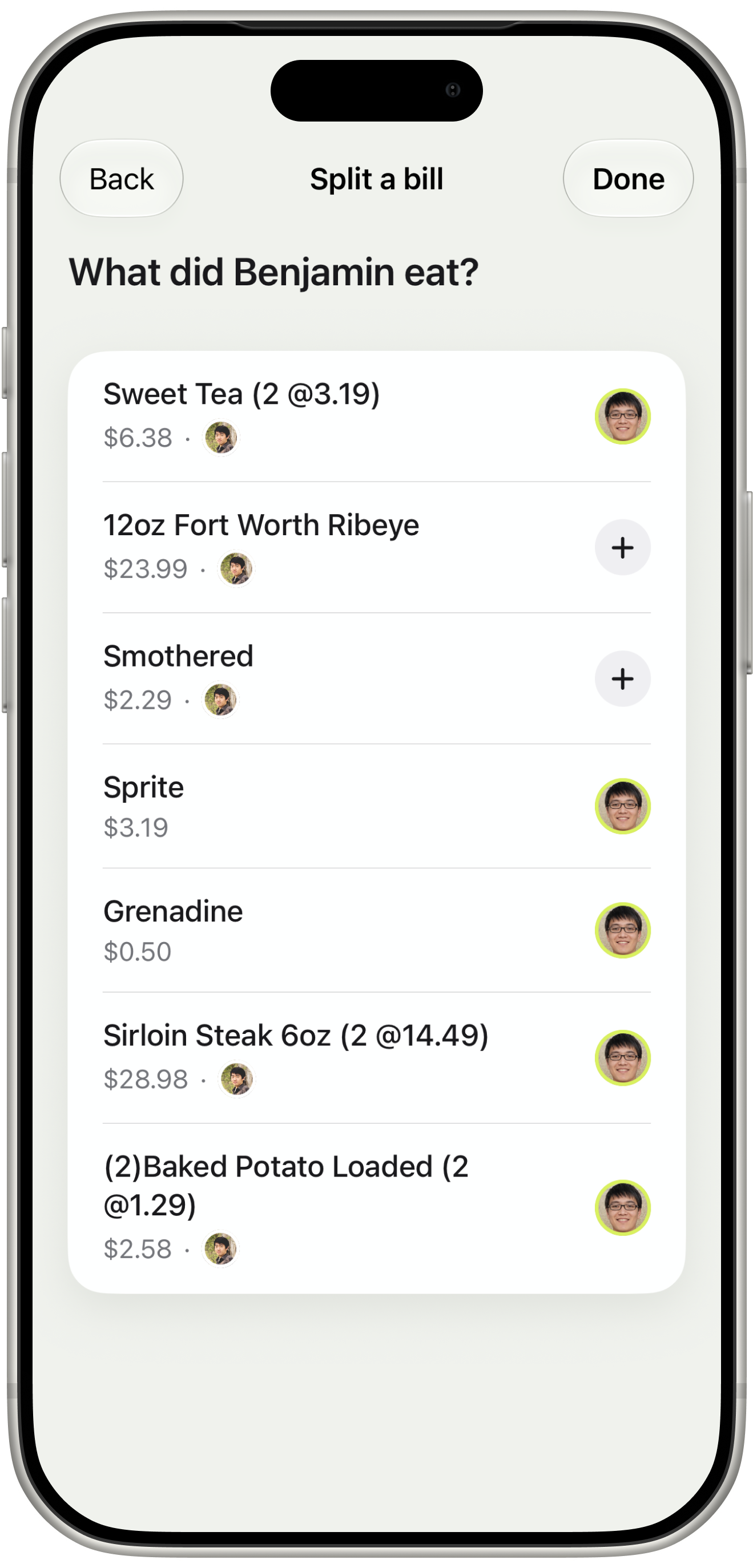
Pick who is on the bill, who paid, and assign each item. Tax, tip, and fees split proportionally based on each person's share.
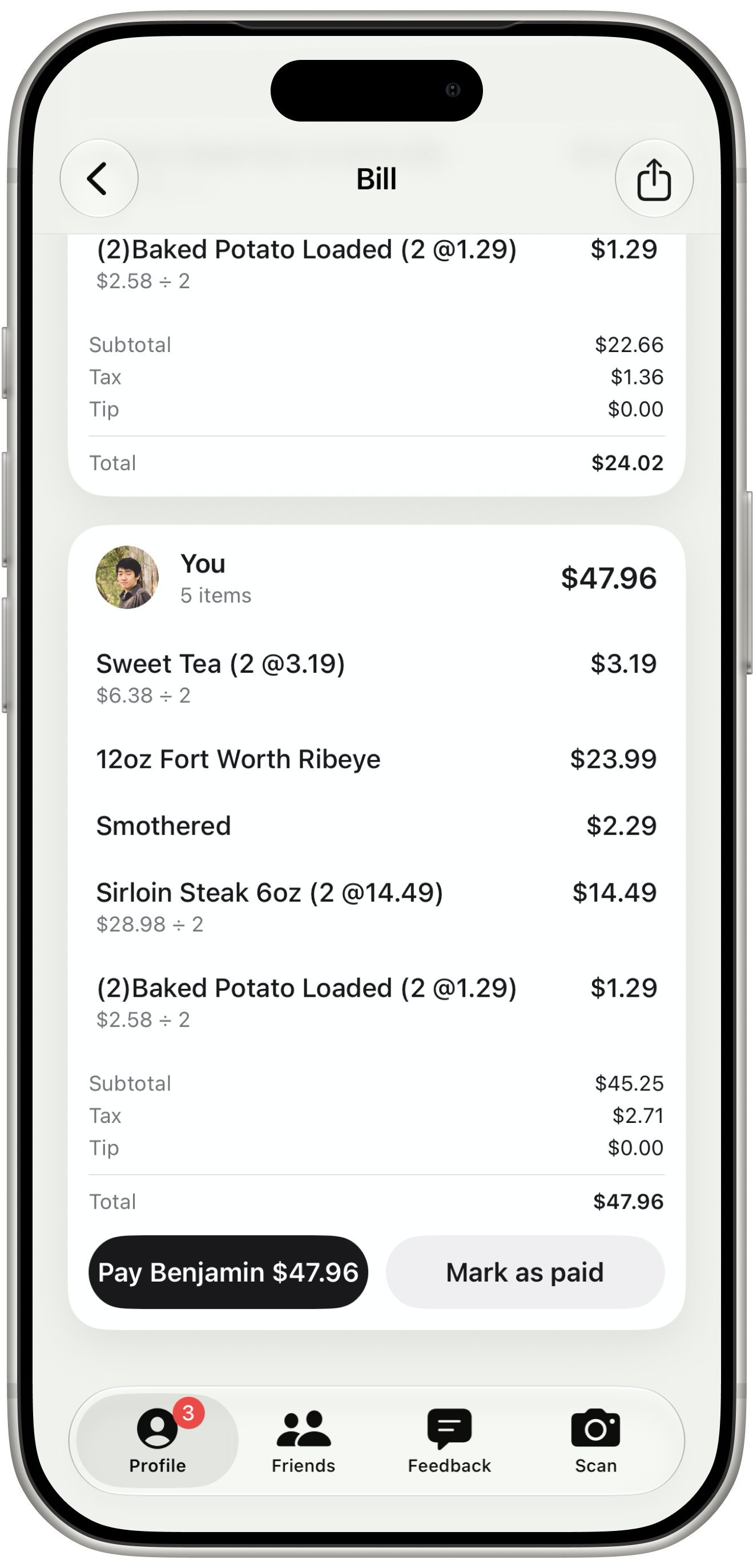
See your total by item, tax, and tip. Tap Pay to open a payment app, or tap Mark as paid when it is done.
Keep open bills organized, add friends fast, send reminders, and pay back quickly.
Open bills stay organized on your Profile with names, totals, and what is left.
Split appetizers, bottles, and sides across the right people. Tax, tip, and fees split proportionally too.
Show your QR code at the table and build your group fast, without typing handles back and forth.
Add a guest from contacts even if they are not on SlashTab, then share the bill when it is time to pay.
Know when you are added to a bill, someone sends a reminder, or a payment is marked paid.
Open someone's profile to see open bills between you two in one place.
Tap Pay on your share and open Venmo, Cash App, or Zelle with the amount ready.
If you paid, send a reminder from the bill instead of chasing people in the group chat.